Troubleshooting
Types of problems
When building your agent, you may encounter that it does not provide the correct answers and that may be due to different types of problems. This section will help you identify and solve them.
Information Problems
Problem Description The system fails to provide adequate responses due to missing information, document inconsistencies, or poor formatting that prevents proper model interpretation.
Solutions
- Add, remove, or modify documents with functional team support
- Reload documents with improved formatting
- Use custom separators and preview blocks before uploading
- Perform manual document modifications when needed
Chunking Problems
Problem Description Issues arise during document segmentation affecting how information is processed and retrieved, particularly with chunk size management and overlap settings.
Solutions
- Adjust chunk size parameters
- Modify overlap settings
- Implement chunk separators
- Configure manual blocking
- Improve preprocessing techniques
Information Retrieval Problems
Problem Description Challenges with temporal relevance, information freshness, and semantic search complexity, especially when dealing with similar extracts or subtle content differences.
Solutions
- Implement date-based reordering
- Use fixed extracts
- Apply Cross-Encoder reranking
- Conduct multiple targeted searches by topic
Context Problems
Problem Description The agent lacks sufficient background information to resolve queries successfully, leading to incomplete or incorrect responses.
Solutions
- Modify system prompt for global context needs
- Use lessons for general context
- Use document metadata for document-specific context
- Implement block metadata for extract-specific information
Flow and Interaction Style Problems
Problem Description Issues with communication patterns and interaction style that affect the user experience and conversation quality.
Solutions
- Modify system prompts with specific instructions
- Implement FAQ structures
- Consider fine-tuning options
- Add example-based instructions (few-shot)
Generation Problems
Problem Description The language model struggles with complex reasoning or calculations despite having all necessary information and context.
Solutions
- Switch between LLM providers (OpenAI, Google, Anthropic, Mistral, etc.)
- Upgrade to more powerful models (e.g., GPT-4o instead of GPT-4o-mini)
- Use alternative prompting techniques
- Implement specialized tools for complex tasks
Platform's troubleshooting and monitoring module
Our platform has a built-in troubleshooting and monitoring module that will help you identify and solve problems with your agent. Think of it as a debugger tool that also provides detailed logs of what the agent is doing and why it is doing it.
If you head to Activity menu > Troubleshoot, you will be able to see all the conversations to select the one that you want to debug. You can find the desired one quickly by using the filters.
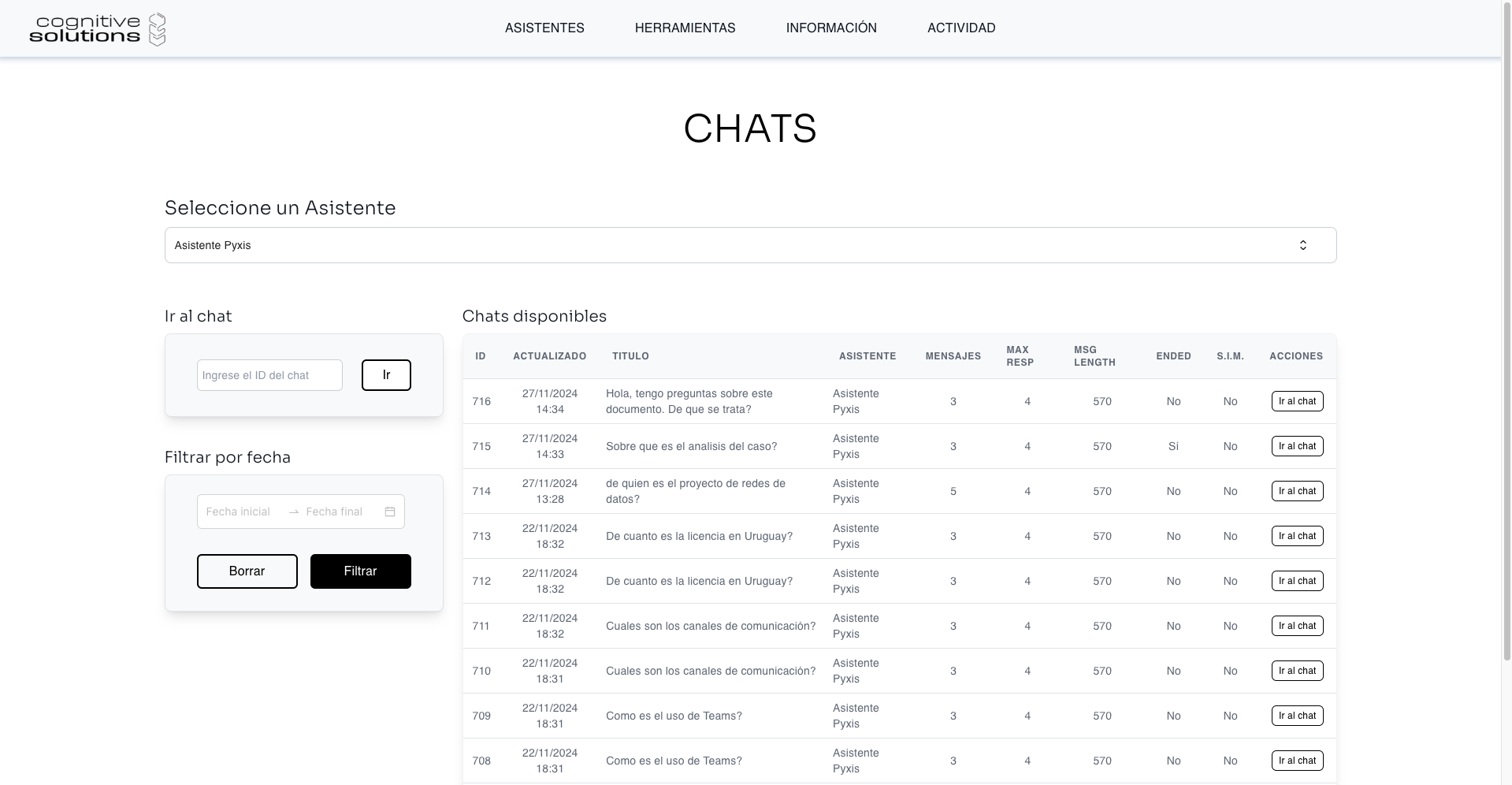
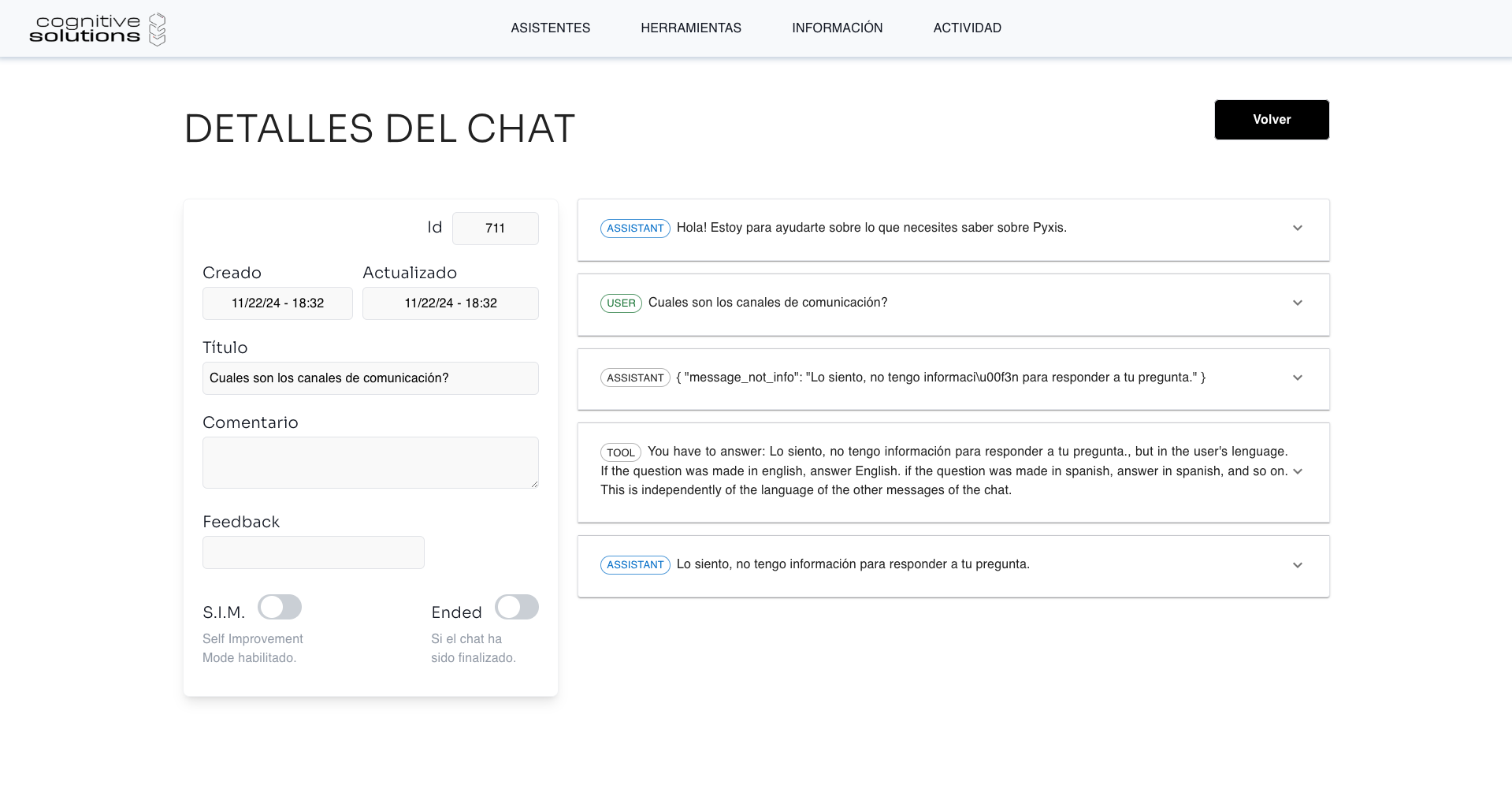
Once you select the conversation, you will be able to see the full conversation history, containing:
- The user's message and its attachements if any
- The agent's request to the tools and searches with its parameters
- The information returned by the tools
- The agent's answer provided to the user,
- The feedback provided by the user, if any
- The prompt sent to the LLM
The following image shows an example of a conversation:
Conversation views
The conversation can be displayed in two views, which you can switch between using the tabs above the message list. Each tab shows the number of messages it contains, and the selected view is kept when you move to the previous or next conversation.
- All messages (default): the technical view, with every message of the conversation, including tool calls and messages hidden from the end user.
- User view: only the messages the end user saw in the chat, displayed as a chat, with user messages on the right and the agent's responses on the left, rendered as formatted text (headings, lists, tables, code blocks, images and links). It is useful to review the conversation exactly as the user experienced it.
In both views you can select a message, by clicking it or by using the keyboard, to see its details in the side panel.
To troubleshoot a conversation while you are still chatting and editing the agent, use Developer mode.
Conversation and message costs
The platform estimates the cost of every response generated by the LLM, so you can follow the consumption of your agents from the same conversation view.
In Activity > Troubleshoot you can see:
- Cost in the conversation summary: the sum of the cost of all the messages of the conversation, including calls to native tools such as web search. It updates in real time as new responses are generated.
- Cost in the detail of a message: the cost of that individual response. It is shown for agent responses and native tool calls; user messages have no cost.
Costs are expressed in USD and are calculated from the tokens consumed by the response (input, cached input, output and reasoning tokens) and the price of the model that produced it. Each provider (OpenAI, Anthropic, Google) prices its models differently, so the same conversation can cost more or less depending on the model configured for the agent, and on options such as reasoning, which consume additional tokens.
Provider prices are updated automatically once a day, at 03:00 UTC, and all the responses generated during that day are priced with those values. If a provider changes its prices during the day, the change is reflected the following day. For this reason the amounts shown are a close approximation of the consumption and may differ slightly from the provider's invoice.
This automatic update covers the public prices of OpenAI, Anthropic and Google. If your agent runs on a custom provider, such as Azure Foundry, prices are not published in a way we can read automatically: you tell us the price that applies to your models and we load it manually. From that moment on, costs are calculated normally; responses generated before the price was loaded have no cost associated.
If you consume the API directly, the same values are available in the conversation and message models as total_cost and message_cost.
To follow the aggregated spend of your tenant by agent, model or provider over a period, use the Usage page.